Raster Images
To import raster images, you can:
Go to , or press the shortcut CtrlCmdI.
Select the image.
Click on Import.
You can also drag an image and drop it onto the canvas. The imported image will be inserted at the position of your mouse cursor, or the middle of the visible area of your drawing if the cursor is not currently on the canvas.
Import Dialog
If the image you selected is with a file type supported by Inkscape, an import dialog will open with a few options explained below.
Image Import Type
Whether Inkscape should save a copy of the image in the document, or simply link to it.
Embed: The data of the image will be embedded into the document.
Link: Inkscape will save a reference to the image, and the image will be loaded when the document is opened.
If you embed an image, the file size of the document will increase, but you can ensure that the image won't go missing when the image is moved. On the other hand, linking to an image saves file size, but if Inkscape can't find the image on subsequent opens, it will be replaced with a red X.
小訣竅
Linked images auto-update whenever the Inkscape window goes into focus. If you edit a linked image then refocus the window, the image will be updated. This makes it useful if you want to edit an image alongside an Inkscape document. You can embed the image later in the Object Properties.
Image DPI
The DPI (dots per inch) the image should be rendered in.
From File: The file imports with dimensions according to the DPI specified by the image.
備註
If you are importing an image with:
Width: 4980 px
Height: 3320 px
DPI: 240
into a document in mm units, that makes the image render at
Width: 4980 / 240 * 25.4 = 527.05 mm
Height: 3320 / 240 * 25.4 = 351.367 mm (rounded)
Default Import Resolution: The file imports with dimensions according to the default DPI.
小訣竅
You can set the default import DPI in the Preferences.
Todo
link the above to the relevant section in the preferences
Image Rendering Mode
The rendering mode the image should render with.
None (auto): Inkscape's renderer will decide which rendering mode to use. By default Inkscape uses the Smooth (optimizeQuality) option.
Smooth (optimizeQuality): The image will render with antialiasing enabled.
Blocky (optimizeSpeed): The image will render without antialiasing. Pick this mode if you are importing a pixel art image, or otherwise want antialiasing disabled on the image.
There are more rendering modes available in the Object Properties.
備註
The implementation of Blocky (optimizeSpeed) differs from browser to browser. In Chromium-based browsers, the Blocky rendering mode doesn't disable antialiasing. To truly disable it, you need to switch to the Pixellated rendering mode in the Object Properties.
The SVG file below tests how your browser renders the Blocky mode.
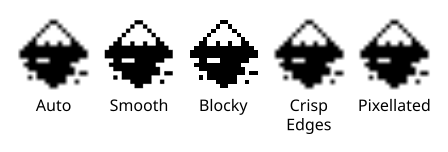
How your browser renders different rendering modes
Unsupported Formats
There may be some new image formats that Inkscape does not support in your installed version. When attempting to import such an image, the SVG import dialog opens. Even if you click on OK, the import fails and Inkscape shows an error message.