Dialogs and the Dialog Dock
Dialogs are the smaller windows that appear from time to time, as you use Inkscape. As an example, below is an image of the Inkscape window with a couple of the larger dialogs on top of it.
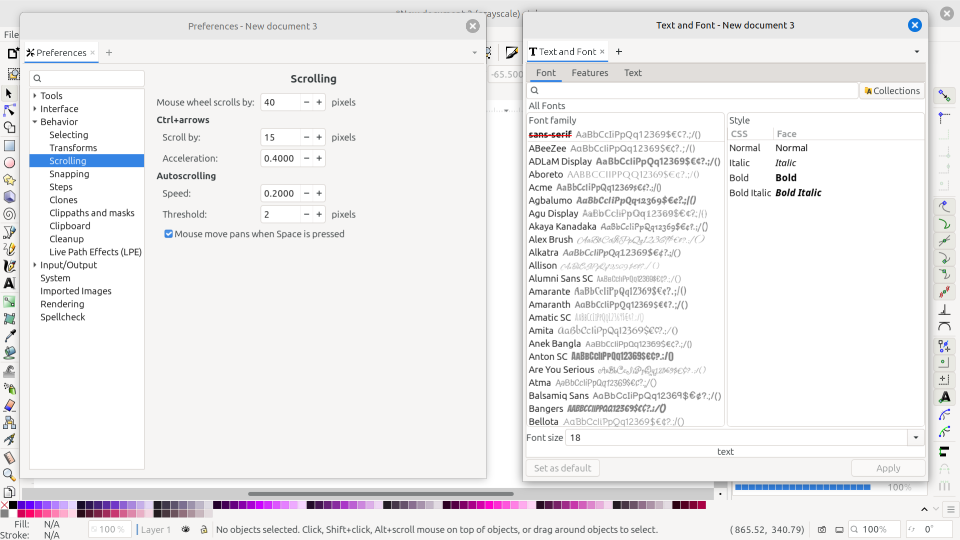
Two Inkscape dialogs: Preferences and Text and Font
Just to the right of the dialog's tab, notice a small plus symbol (+). And in the same bar as the tab, but near the right edge of the window is a small down arrow. These icons are described below.
Icon |
What It Does |
|---|---|
|
opens a dropdown window with links to open all the dialogs individually |
|
opens a small menu for manipulating the dialogs |
Three options to manipulate dialogs:
undock the dialog
close the dialog
close the dock
Dialogs may be either docked or floating. The dialogs shown above are floating, because they can be moved around (by grabbing the titlebar with the mouse).
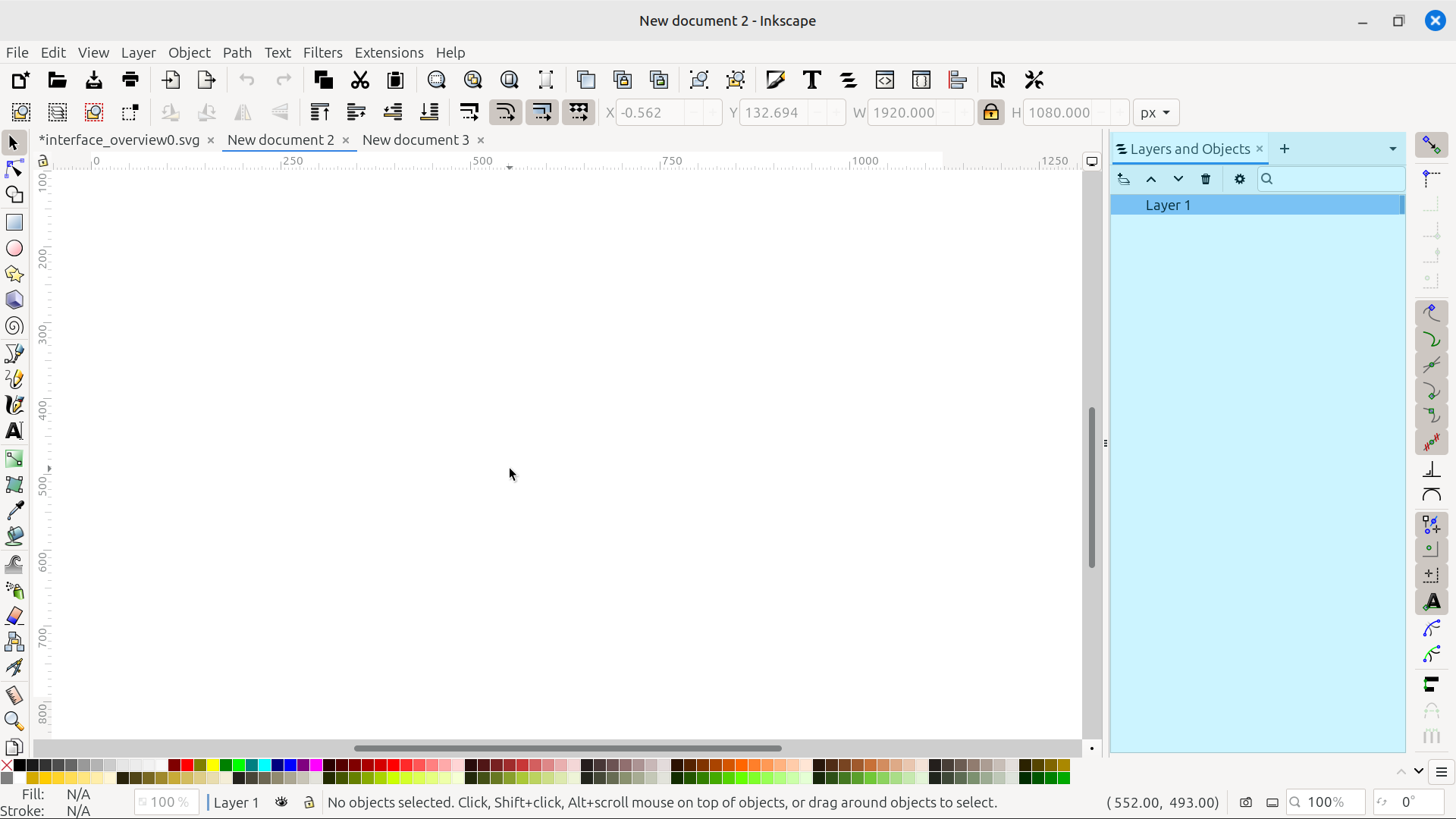
The dialog docking area of the Inkscape interface
In the image above, the dialog dock is highlighted in blue. This is where the docked dialogs can be found. The dock is not visible if no dialogs are open.
The brief video below shows how to dock, rearrange, and undock dialogs.
Tab Styles
The image below shows three different screenshots of the dialog dock by itself, with the dock containing three open dialogs. The tabs are highlighted with yellow. Notice the small plus and down-arrow symbols are still available, to the right of the tabs.
Each image demonstrates different options for titling the dialog tabs. The style of the title can be changed in Preferences > Interface > Windows > Tab labels. Respectively, the options are called Always, Active tab only, and Off. This refers to whether text is used as opposed to icons, in the title.
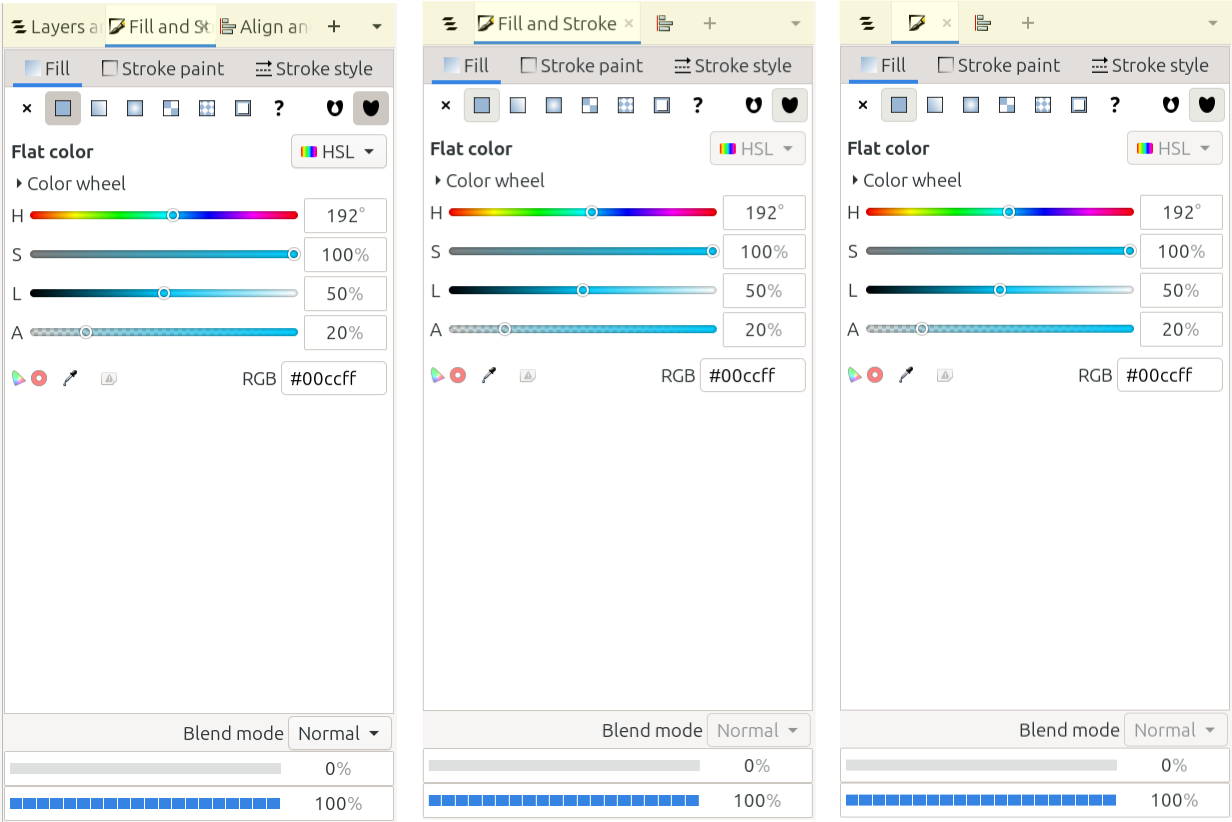
A few docked dialogs
Defaults
For some users, the dialog docking area changes constantly as they work, opening and closing different dialogs, as needed. Others users may find that they use the same dialogs all the time, and they may keep only those open all the time, whether docked or not. Here, the default state of dialogs and the dialog dock is described.
When you first open Inkscape, after you install it for the first time, each dialog will open either floating or docked, as follows.
Docked |
Floating |
|---|---|
Fill and Stroke |
Tiled Clones |
Align and Distribute |
Document Properties |
Swatches |
Document Resources |
Layers and Objects |
certain Filters |
Transform |
Extension Gallery |
Export |
Preferences |
Object Properties |
XML Editor |
Check Spelling |
certain Extensions |
SVG Font Editor |
Text and Font |
Find/Replace |
Filter Gallery |
Live Path Effects |
|
Trace Bitmap |
|
Symbols |
|
Selectors and CSS |
|
Undo History |
|
Icon Preview |
UNDER REVIEW