Window Management
Todo
This doesn't seem to fit here too - maybe for the user interface chapter -- This is brynn answering - well, this IS the Interface chapter - although maybe you mean the introductory Interface chapter? I'm thinking possibly this should be called Canvas Management?? because canvases are organized in tabs and windows. Windows are not really able to be organized. But canvases can be organized. Being called "canvas management", maybe it would belong as a child of the Canvas chapter? I'm going to attempt a re-write - separately, so your original does not get lost. Uumm, since I dont know how to create a new page, I'm going to write it at the end of this page. When we decide which one to use, we can delete the other.
The structure of an Inkscape instance can be broken down to windows and tabs. Multiple documents can be opened in a single window with tabs. Tabs can be detached or moved to different windows.
The Tab Bar
Todo
[screenshot] Add screenshot of the tab bar
The tab bar only shows when there are more than 1 open document. A tab consists of the filename and a close button. You can right-click on a tab to show additional options.
When a window has no tabs within, it will close automatically.
Multiple Instances
One document can also have multiple instances where changes to the document are mirrored. This can be useful when you want to view a document at multiple zoom levels at the same time.
Instances behave like regular documents. They are opened as tabs, and can be arranged and managed as usual.
To work with multiple documents:
To |
Do one of the following |
|---|---|
Create a new document |
|
Create a new instance of a document |
Select . The tab title will contain : followed by a number to indicate the number of instances opened. |
Switch to another tab in a window |
|
Rearrange tabs in a window |
Drag a tab within the tab bar. |
Detach a tab to a new window |
|
Arrange tabs between windows |
Drag a tab onto the tab bar of another window. |
Close a tab |
|
View Commands
The Inkscape window itself can also be altered in ways you'd expect from a desktop program. There is a fullscreen mode, a Dockable Dialog visibility toggle, and a Focus Mode toggle to hide menus and toolbars.
To alter the Inkscape window:
To |
Do one of the following |
|---|---|
Toggle fullscreen mode |
|
Toggle Focus Mode |
Press ShiftF11. |
Toggle visibility of all dialogs |
|
Canvas Management (brynn's rewrite)
Inkscape canvases are organized in windows and tabs. Tabs are a new feature in version 1.5. A single window may contain one or multiple tabs, with one canvas per tab.
Tabs are created when the user clicks the New Document button . They are added to the Tab Bar. In the screenshot below, the Inkscape window has three tabs. Two of them contain files that have been saved - SVG files, and one of them is a file which has not been saved yet.
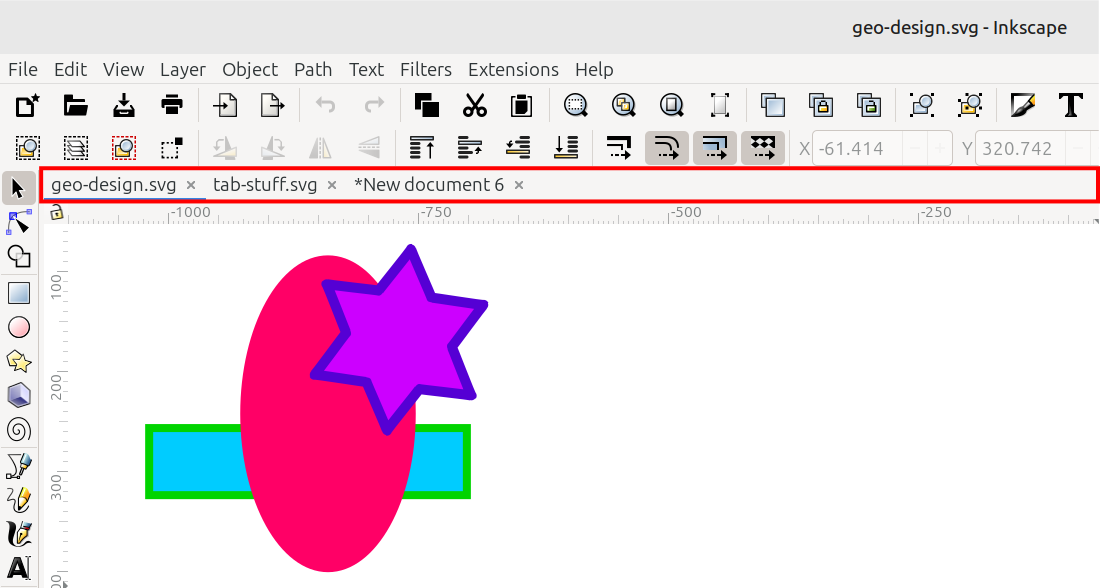
The Tab Bar
Each tab contains the name of the file, and the Close button .
Tabs can be removed from a window, by grabbing it with the mouse and dragging onto the canvas. When the mouse button is released, the tab becomes a stand-alone window. The video below shows creating new tabs, removing tabs to become a standalone window, and removing tabs from one window and adding them to another window.
tab_bar0.mp4
When the last tab in a window is closed, the whole window closes.
IN PROGRESS / UNFINISHED