The Welcome Dialog
After launching Inkscape, the Welcome dialog appears in the center of the screen. In this dialog, you can adjust basic settings, learn how to contribute to Inkscape, open recent files and load templates.
To close the Welcome dialog and open a new document, press Esc.
To close Inkscape at this point, click on the top-right X button.
The Welcome dialog is split into three parts: Quick Setup, Supported by You and Time to Draw.
Quick Setup
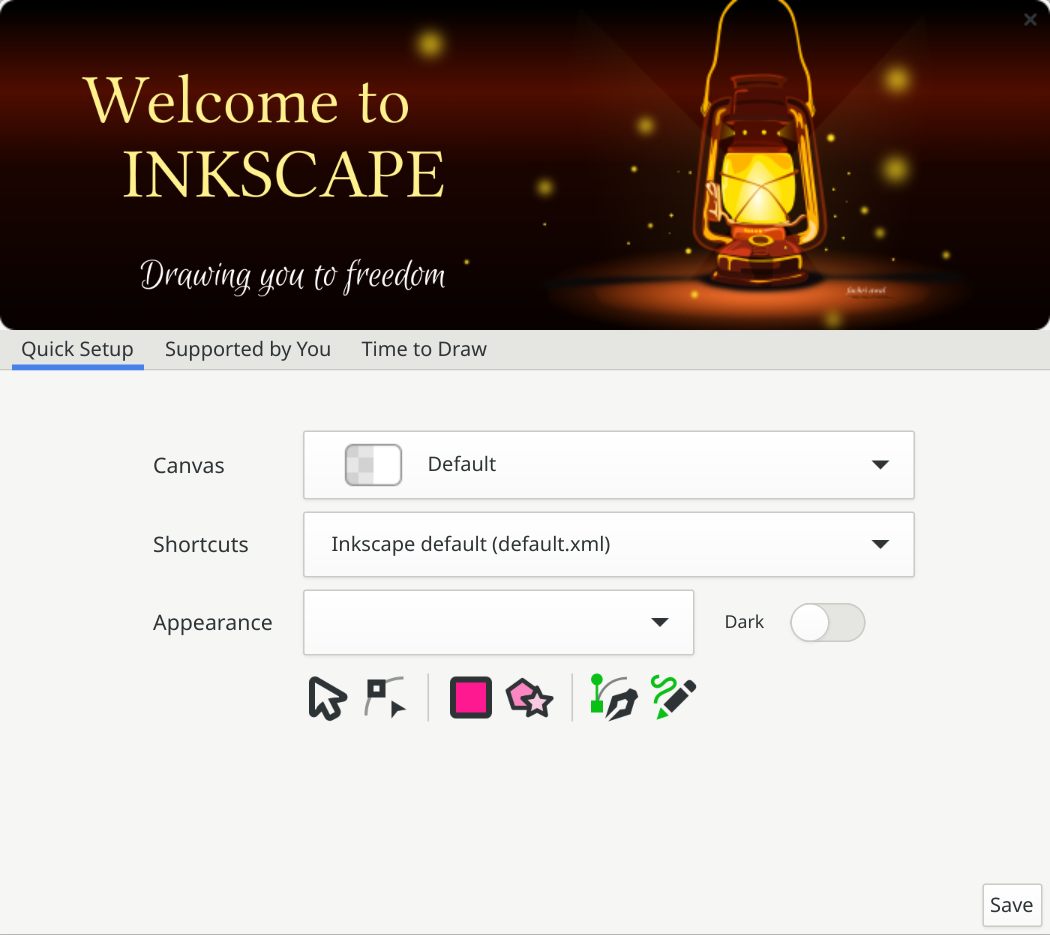
The Quick Setup page
The first page is the Quick Setup page. You are presented with the following options:
Canvas: The color of your page and background.
Shortcuts: The keyboard shortcut file you want to use. To follow this manual, please choose Inkscape Default.
Appearance: The general appearance of the program. Below the dropdown is the icon previews; choose one that suits your environment best.
These options correlate to different groups of settings in the Preferences. If you want to change these settings later, please refer to the Interface chapter in the Preferences section.
Todo
after writing Preferences chapter add the link here
After setting them up, press Save to go to the next page.
備註
The Quick Setup tab would probably get redesigned before 1.5 gets released. I'll have to come back to this later.
注意
At the time of writing (2025-04-07), the Appearance dropdown doesn't work. We'll change the theme later anyways, so simply ignore it.
警告
There is currently no way to set the default canvas color in the preferences. They can be set per-document or via hand-editing the preferences.xml file, but it's a bug nevertheless. See issue #12022.
Supported by You
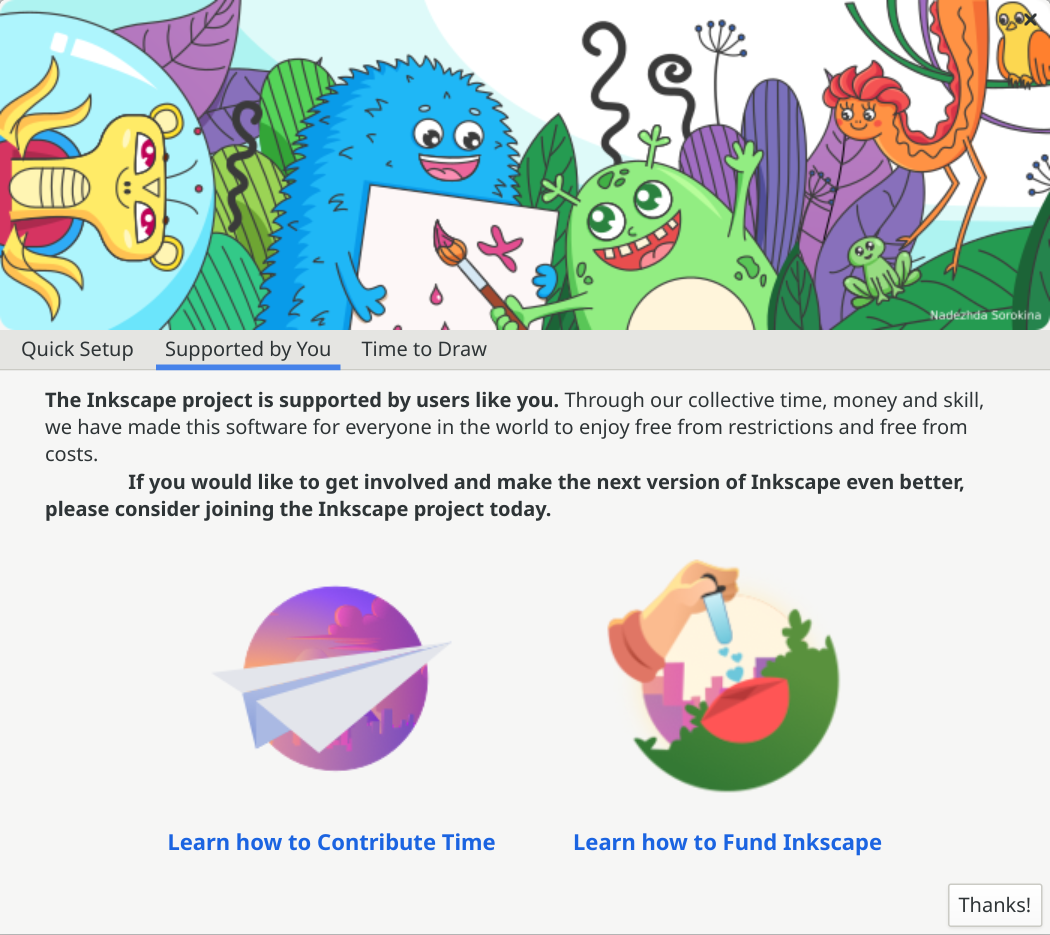
The Supported by You page
The second page lists two ways you can support the development of Inkscape:
Learn how to Contribute Time: Links to the Contribute page.
Learn how to fund Inkscape: Links to the Help Fund Inkscape page.
To go to the next page, click on the Thanks! button.
Time to Draw
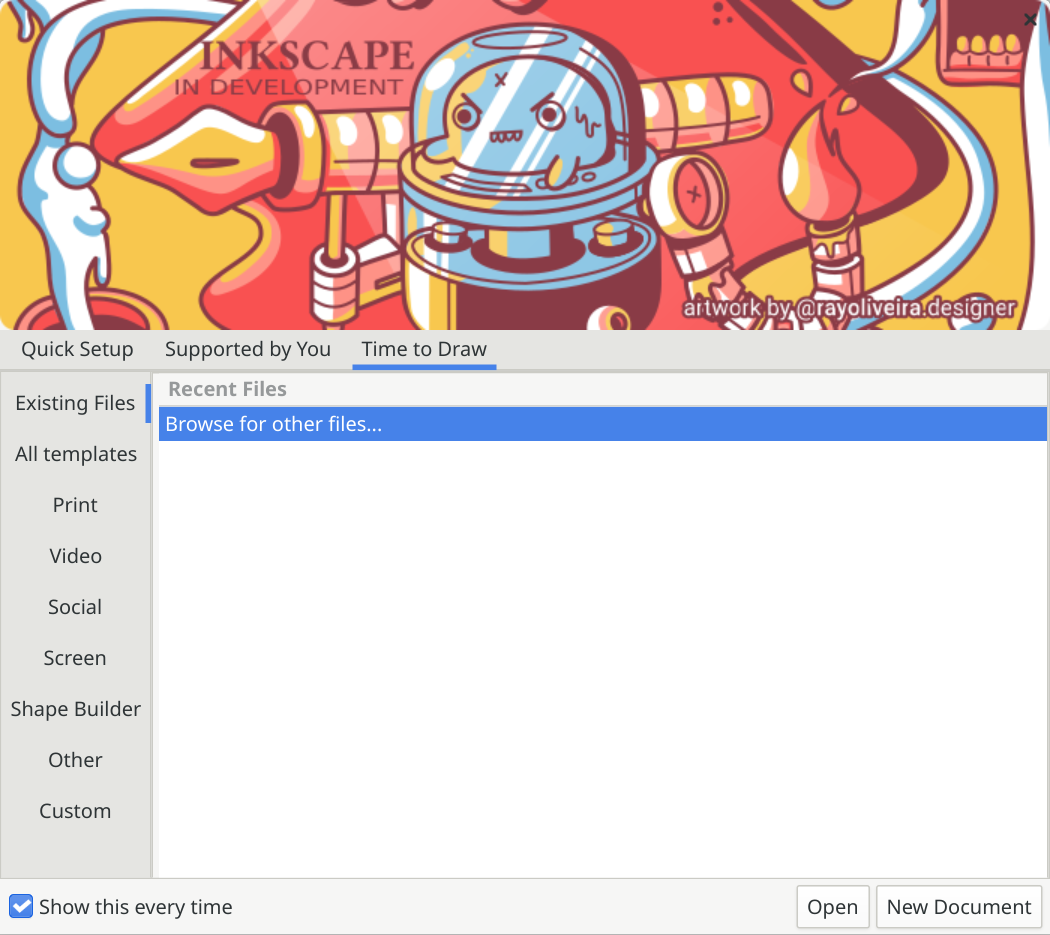
The Time to Draw page
This page will show on subsequent launches of Inkscape. To prevent this, uncheck Show this every time at the bottom left.
In this page:
To open a new document, press EnterReturn or click on New Document.
To open an existing document, do one of the following:
Double-click on it.
Select it then click on the Open button.
To open a file not listed here, double-click on the Browse for other files... item in the list.
To open a template, go into a template category on the left and click on a template.
小訣竅
You can make the dialog show on launch again by going into and checking Show Welcome dialog.