Interface Preferences
There are many, many preferences affecting the Inkscape interface, that users may manipulate. They will all be explained here.
Below is an image of the Preferences dialog, showing the Interface window.
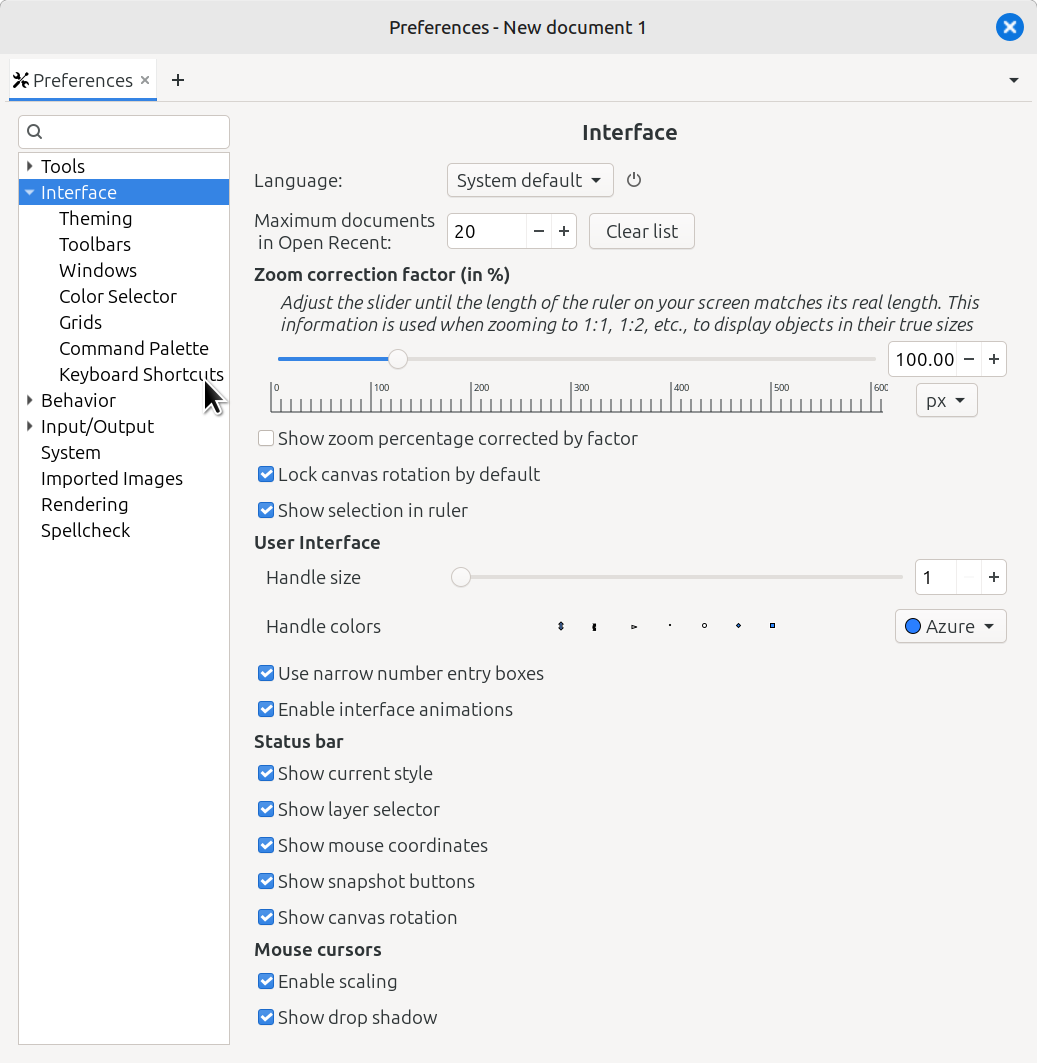
The Preferences dialog showing the Interface window
Besides all the options (on the right side) that can be seen in the screenshot, there are seven more pages of settings within the Interface section. Here are all the settings in the Interface section.
Preferences > Interface
Language - A dropdown menu of available languages; This icon indicates that the user must restart Inkscape to put this change into effect.
Maximum documents in File menu > Recent Documents - A spinbox to set the number of recent documents to show in the dropdown menu; Clear List button - Click to remove all the documents listed in File menu > Recent Documents
- Zoom Correction Factor
Zoom Correction Factor - Set the zoom function to something besides 1:1
Show zoom percentage corrected by factor - Shows the corrected zoom percentage in the Zoom field, instead of the not-corrected value
Lock canvas rotation by default - Prevent accidental canvas rotation by disabling on-canvas keyboard and mouse rotation
Show selection in ruler - Displays a highlight on the ruler that indicates the dimensions of the selected object
- User Interface
Handle Size - A slider bar and number field, to set the size for handles
Handle Colors - A dropdown menu to choose the color for handles
Use narrow number entry boxes - Makes narrower number fields by limiting the padding
Enable interface animations - Set whether to use the GTK animations in the interface
- Status Bar
Show current style - Set whether to display the Style Indicator in the status bar
Show layer selector - Set whether to display the Layer Indicator, in the status bar
Show mouse coordinates - Set whether to display the Mouse Coordinates in the status bar
Show snapshot buttons - Set whether to display the Snapshot icons in the status bar
Show canvas rotation - Set whether to display the Canvas Rotation number field, in the status bar
- Mouse Cursors
Enable scaling - Allow scaling of the mouse cursors
Show drop shadow - Set whether to show a drop shadow on the mouse cursors
Preferences > Interface > Theming
- Theme
Change GTK Theme - A dropdown menu offering several theme choices
User themes - A field to specify the location of user themes folder, and an Open button, to open that location
Use dark theme - A checkbox to enable a dark theme
Font scale - A number field to set the font size, and a Reset button to reset it to the default
Contrast - A slider bar and number field to set the interface to different levels of gray
- Icons
Change icon theme - A dropdown menu with a few icon themes
User icons - A field to specify the location of the user icon folder, and an Open button to open that location
Use symbolic icons - A checkbox to enable symbolic icons; checking it activates the next two options
Use default base color for icons - Check to use the default base color; unchecking allows the user to choose the base color
Use default highlight color for icons - Check to use the default highlight colors; unchecking allows the user to choose the highlight colors
A color box - If the default color options (above) are unchecked, the user can click this box to choose the base color
Three color boxes - If the default color options are unchecked, the user can click these boxes to choose highlight colors
Show icons in menus - A dropdown menu to choose whether to show icons in the menus; This icon indicates that the user must restart Inkscape to put this change into effect.
Shift icons in menus - Shifts the icons within the menus, to align the columns better ; This icon indicates that the user must restart Inkscape to put this change into effect.
- XML Editor
Color theme - A dropdown menu to choose the color theme for the XML Editor
Monospaced font - If the user wants a monospaced font in the XML Editor, choose the font here
XML Tree - A checkbox to choose to use monospaced font
Preferences > Interface > Toolbars
Toolbox icon size - A slider bar to set the size of the icons in the Toolbox
Control bar icon size - A slider bar to set the size of the icons in the Tool Controls Bar
Snap controls bar - Choose between three styles of the Snap Controls Bar
Preferences > Interface > Windows
Show when starting - A dropdown window to choose what to show when Inkscape starts
Default window size - A small dropdown menu to choose the default window size
Saving window size and position Choose one of the following three options
Don’t save window geometry - Lets the window manager determine the size and placement of the windows
Remember and use last window’s geometry - Remembers and uses the last window’s geometry
Save and restore window geometry for each document - Saves and restores the window geometry for each document
- Dialog Settings
Dialog behavior - Choose between Docked and Floating; This icon indicates that the user must restart Inkscape to put this change into effect.
Dialog on top - Choose whether to keep the dialogs on top or treat as normal windows
Tab labels - Choose how to display the dialog names on the tabs
Dialog tabs - Choose whether to show a close button on the tabs
Save and restore dialog status - The last open window’s dialogs are saved, and restored the next time Inkscape is opened
Dialogs are hidden in taskbar - Whether dialogs show in the window manager taskbar (I submitted a bug report to change this to “Whether dialogs show in taskbar”. Edit as needed, depending what happens to the bug report.)
- Text and Font dialog
Font selector - Whether to use an experimental font browser; requires restart to take effect
- Miscellaneous
Zoom when window is resized - Automatically zoom as needed, to keep the same part of the canvas visible when the window is resized
Save and restore documents viewport - Save the zoom and panning position
Preferences > Interface > Color Selector
Use compact color selector mode switch - Whether to use a compact combo box for selecting color modes
- Visible Color Pickers
Choose which color modes will be available in the Fill and Stroke dialog by clicking on them here.
Preferences > Interface > Grids
- Line Color When Zooming Out
(I submitted bug report to drop “When Zooming Out”. Edit according to what happened to the bug report.)
Minor Grid Line Color - Use the color options in the Default Grid Settings box, to set the minor grid line color, for each type of grid
Major Grid Line Color - Use the color options in the Default Grid Settings box, to set the major grid line color, for each type of grid
- Default Grid Settings > Rectangular Grid
Grid Units - Choose the units for a rectangular grid
Origin X - Set where the X origin should be for rectangular grids (the center of the grid)
Origin Y - Set where the Y origin should be for rectangular grids (the center of the grid)
Spacing X - Set the pixels value for X units
Spacing Y - Set the pixels value for Y units
Grid color - Set the color for Rectangular Grid lines
Major grid line every - Set how many minor grid lines will be between major grid lines
Show dots instead of lines - If dotted lines are preferred to solid lines, check this box
- Default Grid Settings > Axonometric Grid
Grid Units - Choose the units for an axonometric grid
Origin X - Set where the X origin should be for axonometric grids (the center of the grid)
Origin Y - Set where the Y origin should be for axonometric grids (the center of the grid)
Spacing Y - Base length for the Z-axis
Angle X - Angle of the X-axis
Angle Z - Angle of the Z-axis
Grid color - Set the color for grid lines for Axonometric grids
Major grid line every - Set how many minor grid lines between major grid lines
- Default Grid Settings > Modular Grid
Grid Units - Choose the units for a modular grid
Origin X - The X coordinate of the grid origin
Origin Y - The Y coordinate of the grid origin
Block width - Set the width of grid modules
Block height - Set the height of grid modules
Gap X - Horizontal distance between blocks
Gap Y - Vertical distance between blocks
Margin X - Left and right margins
Margin Y - Top and bottom margins
Grid color - Set the color for modular grid blocks
Preferences > Interface > Command Palette
- Display Options
Show command line argument names - Show action argument names for command palette
Show untranslated (English) names - Also show the English names of the commands
Preferences > Interface > Keyboard Shortcuts
- (I’m not sure if I quite got all the info correct here – please double-check)
Keyboard File - A dropdown menu to select a file of keyboard shortcuts and modifiers
Shortcuts tab - List of custom shortcuts from the file chosen above
Tools Modifiers tab - List of tools and modifiers from the file chosen above
Reset - Remove customized shortcuts and revert to the shortcuts file listed above
Import - Import custom shortcuts from a file
Export - Export custom shortcuts to a file
IN PROGRESS / UNFINISHED