Tab Bar
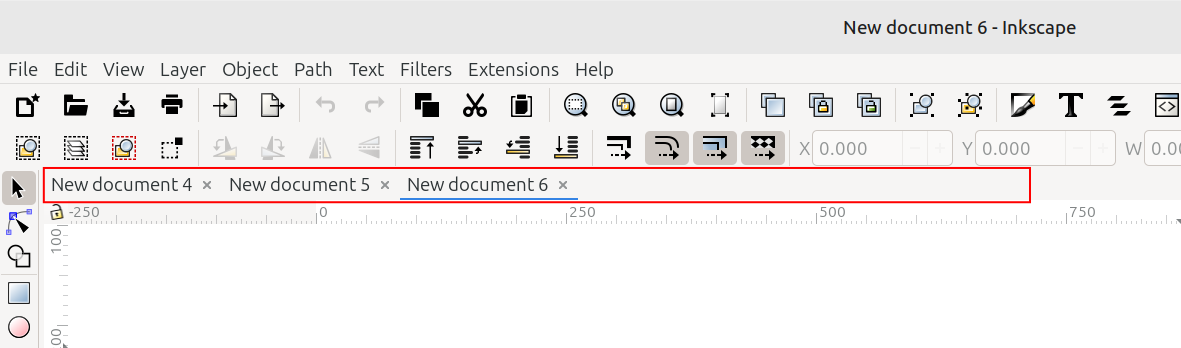
The tab bar
The image above shows the top-left area of an Inkscape window. The Tab bar is highlighted with a red rectangle. Tabs allow users to create or edit more than one drawing in the same, single Inkscape window. The following two images show one Inkscape window with three tabs.
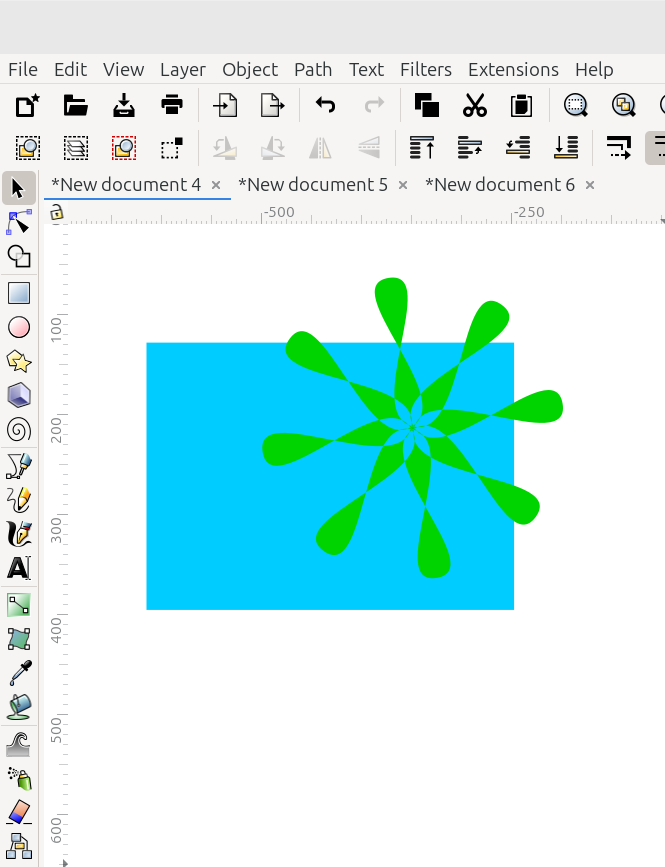
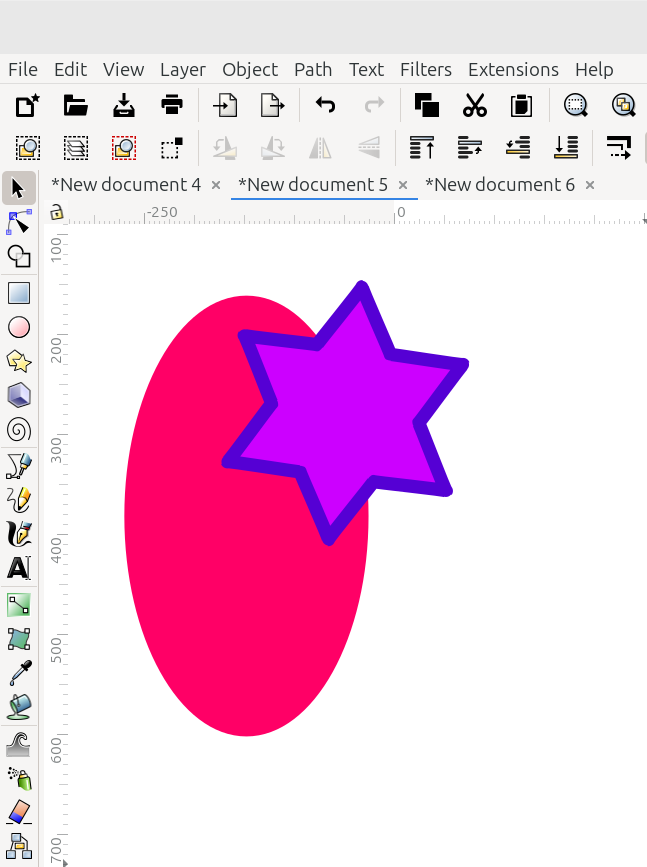
In the Inkscape window shown in the images above, “New document 4” and “New document 5” are two separate tabs containing two different drawings. Notice the blue underline that indicates which tab is being displayed. Although the underline might be a different color, depending on the user’s theme choice.
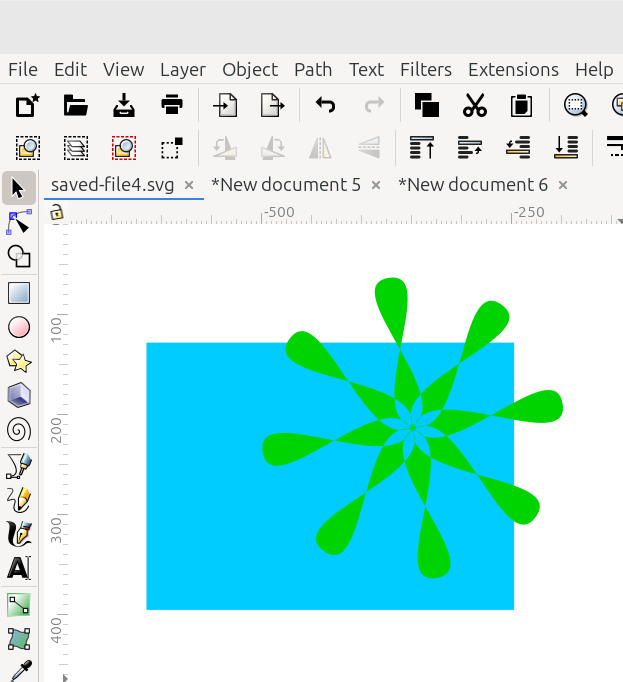
The image below-left shows how the tab changes after the file has been saved. The drawing on the tab that was previously called “New document 4” has been saved with the file name “saved-file4.svg”. Also notice that the drawing on the tab “New document 5” has still not been saved.
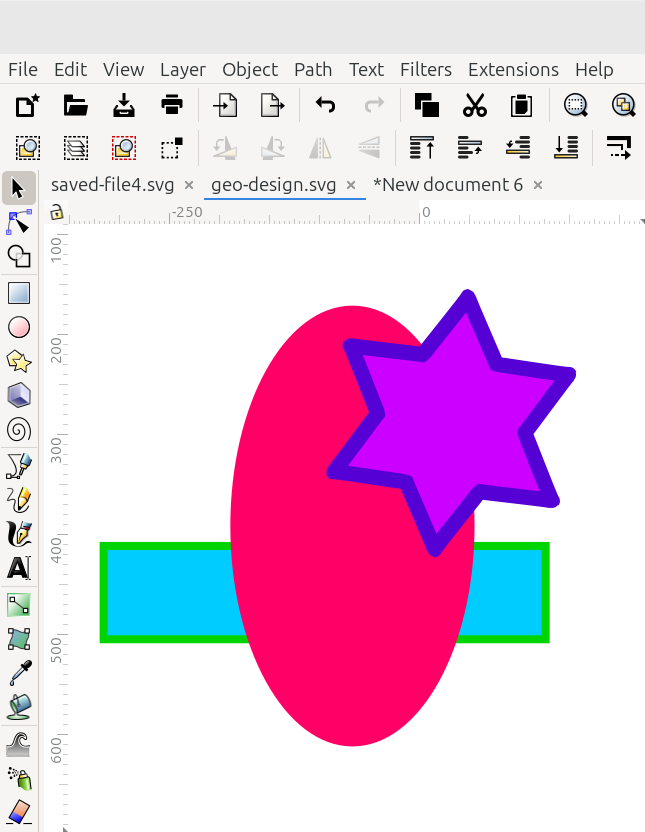
The image above-right shows the drawing that was on the tab called “New document 5”, has now been finished. And it has been saved with the file name “geo-design.svg”.
Tabs (with their drawings) can be rearranged into different windows. The brief video below shows how a tab can be dragged away from the tab bar to become a separate Inkscape window with just that one tab in it. Likewise, it can be dropped into the tab bar of another window.
To close a tab that is no longer needed, click the tiny X button on the right side of the tab.