Path Menu
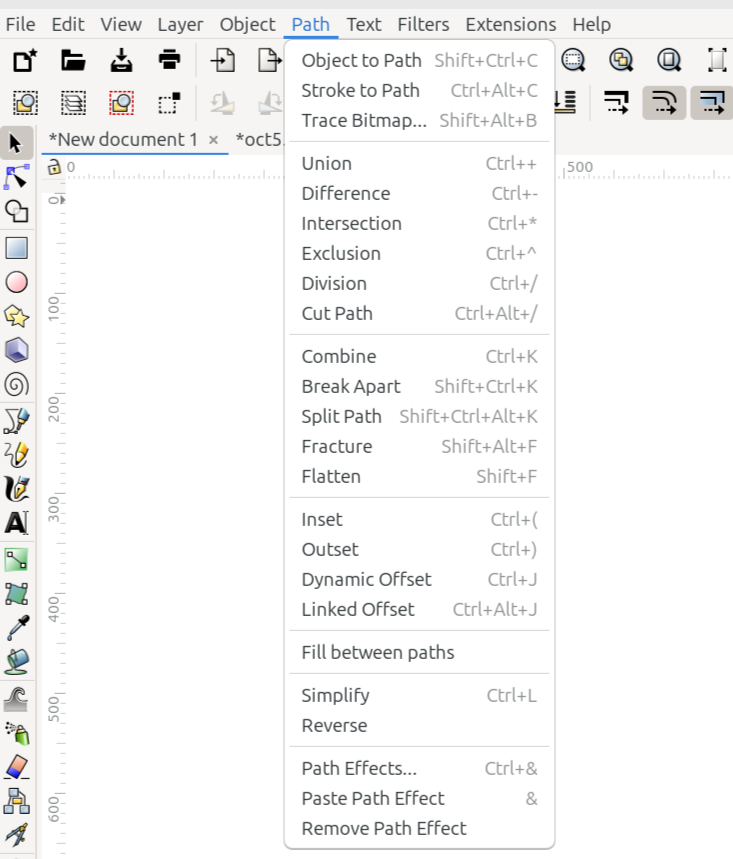
The Path menu
Commands for manipulating paths are found in the Path menu. They are listed below with a brief description of what they do. Detailed explanations for most of them can be found in the Node and Path Manipulation section.
Command or Option |
What it Does |
|---|---|
Converts selected objects to paths |
|
Converts strokes to paths |
|
Trace Bitmap… |
Opens the Trace Bitmap dialog (not sure where it will be located in the manual) |
Path operation that unions or adds two or more paths together |
|
Path operation that differences or subtracts one path from another |
|
Path operation the creates an intersection of two or more paths |
|
Path operation that results in non-intersecting parts |
|
Path operation that divides the bottom path into two or more pieces |
|
Path operation similar to Division except results are only paths, no fills |
|
Combines two or more paths to create a compound path |
|
Breaks a compound path apart into single paths |
|
Splits selected paths into non-overlapping sections |
|
Breaks two or more overlapping objects into all possible segments |
|
Flattens one or more overlapping objects into their visible parts |
|
Inset the selected path by configurable steps |
|
Outsets the selected path by configurable steps |
|
Offsets the selected path dynamically |
|
The dynamic offset is linked to its original path |
|
tbd |
|
Removes excessive nodes |
|
Reverses the path direction |
|
Opens the Live Path Effects dialog |
|
Pastes the copied path effect to another object |
|
Removes the path effect from a selected object |
Todo
Fill Between Paths might be changed before 1.5 is released. Also find out where Trace Bitmap will be covered in the manual, then make the correct link. Delete comments after items are fixed.
READY FOR REVIEW