Rulers And Scrollbars
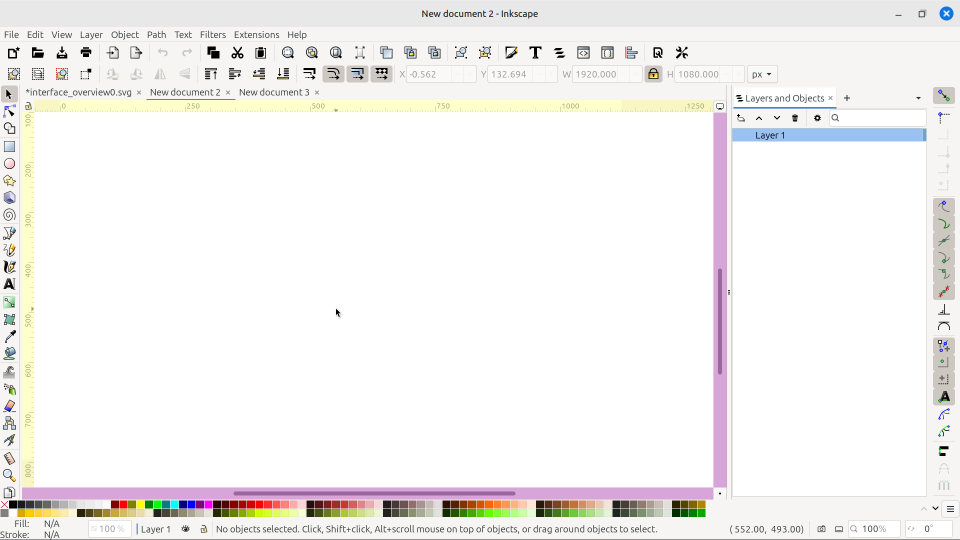
Rulers and scrollbars
The image above identifies Inkscape’s rulers and scrollbars. The rulers are highlighted in yellow, and scrollbars are highlighted in pink.
Scrollbars
Scrollbars function in Inkscape just like scrollbars everywhere They help users to navigate the window, and show their current position on the canvas. Although in Inkscape, the window they are navigating is the canvas. Perhaps unlike most programs, the behavior of the scrollbars can be configured to the user’s preference. This is done in the Preferences dialog > Behavior > Scrolling. The image below shows an example of that page.
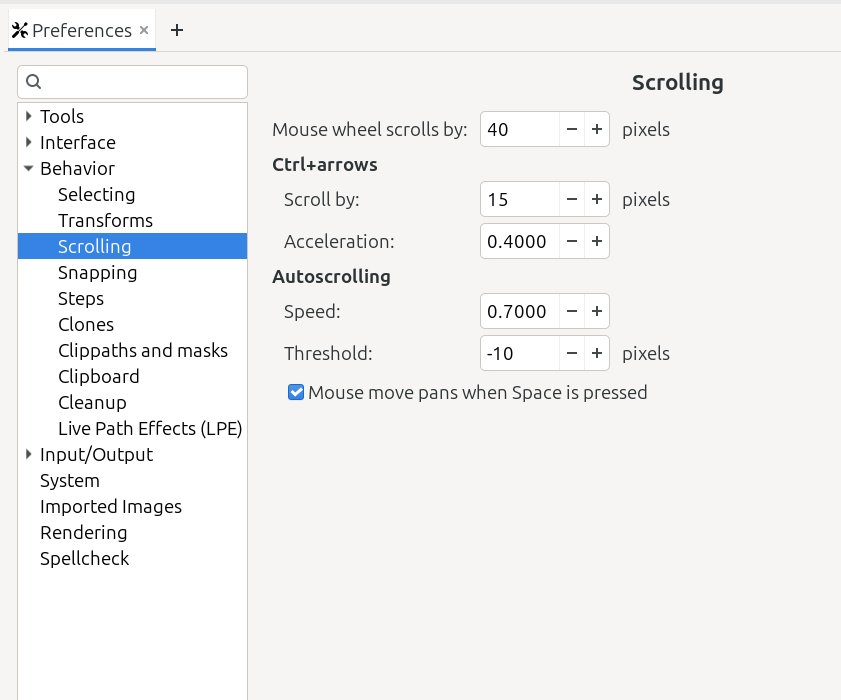
Scrolling preferences
If you don’t understand a setting, hover your mouse for a moment, to produce the tooltip, and that will give you some extra information.
It should be noted that these features would only affect mice with scroll wheels. Touchpads and other pointing devices will not be affected.
Note
There are some programmable touchpad mouses on the market, for use with Windows, which offer many convenient features. Unfortunately there are not any similar products made for use with open source operating systems.
Scrollbars can be temporarily hidden by unchecking View menu > Show/Hide > Scrollbars. Replace the checkmark to make them visible once again.
Rulers
In Inkscape, the rulers do a little bit more than real world rulers. Besides measuring in general, rulers are the source of guidelines. The animation below shows how guidelines originate in the rulers. With the mouse, the user effectively drags them out of the ruler. Details about how to use guidelines and related features can be found in the Guidelines chapter.
There is another feature which uses the rulers, if the user chooses to enable it. The dimensions of a selected object can be overlayed upon the rulers. The image below shows an example of this.
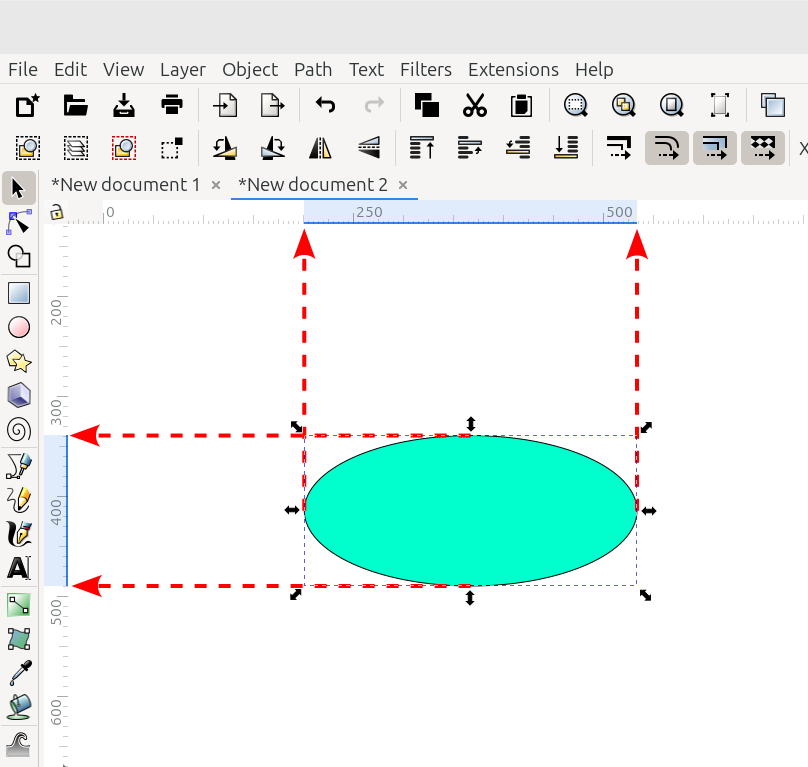
The dimensions of the selected object are highlighted on the ruler
The red dashed lines show the dimensions of the selected object, and point to the edges of the blue highlight on the rulers. This feature can be enabled by checking the option in Preferences > Interface > Show selection in ruler.
Rulers can be temporarily hidden. Uncheck View menu > Show/Hide > Rulers. To make them visible, just replace the checkmark.
Note
About Precision:
It should be noted that Inkscape’s rulers - the rulers that you see on the screen - are not strictly precise. Visually, they only provide a close approximation of measurements. In fact, nothing that you see on the screen will measure perfectly, even if you set up Inkscape to use real-world measurements. No computer graphics program, that is meant to run on different screen sizes, and different operating systems, with different units, can be perfectly precise in the screen display.
This is not to say that Inkscape is not precise; indeed, measured in the right way Inkscape’s precision is every bit as good as any computer graphics program. Inkscape’s precision happens “behind the screen”, in the computer. And this manual will teach how to draw with precision.
But what you see on the screen is not perfectly precise, and users should not attempt to measure any real world material, such as paper or wood or whatever, against the computer screen. Instead, use your own measuring devices, and the values in Inkscape’s dialogs. Those will give you the perfectly precise measurements.
UNFINISHED / IN PROGRESS